Related YouTube video:
Claude Code Permission Modes Explained: Stop Clicking “Yes” to Everything
If you’ve been using Claude Code for a while, you’ve probably experienced it: that moment when the 20th permission prompt appears and your finger just reflexively hits Enter. You’re not reading it anymore. You’re just approving.
This is prompt fatigue — and it’s a real security problem.
According to Anthropic’s own internal data, users approve 93% of permission prompts without making any changes. That’s not thoughtful oversight. That’s a person on autopilot, potentially approving harmful actions without realizing it.
So let’s actually understand the permission modes available in Claude Code, what they trade off, and which one you should probably be using.
The problem with the default mode
Claude Code’s default behavior is to prompt you before every potentially dangerous operation: bash commands, network requests, file writes. The intention is good — keep the human in the loop. But the implementation creates a paradox. The more it asks, the less you pay attention. The more you stop paying attention, the more dangerous it actually becomes.
Manually approving 93% of prompts without reading them is arguably worse than a well-designed automated system, because it gives you the illusion of control without any of the substance.
The five permission modes
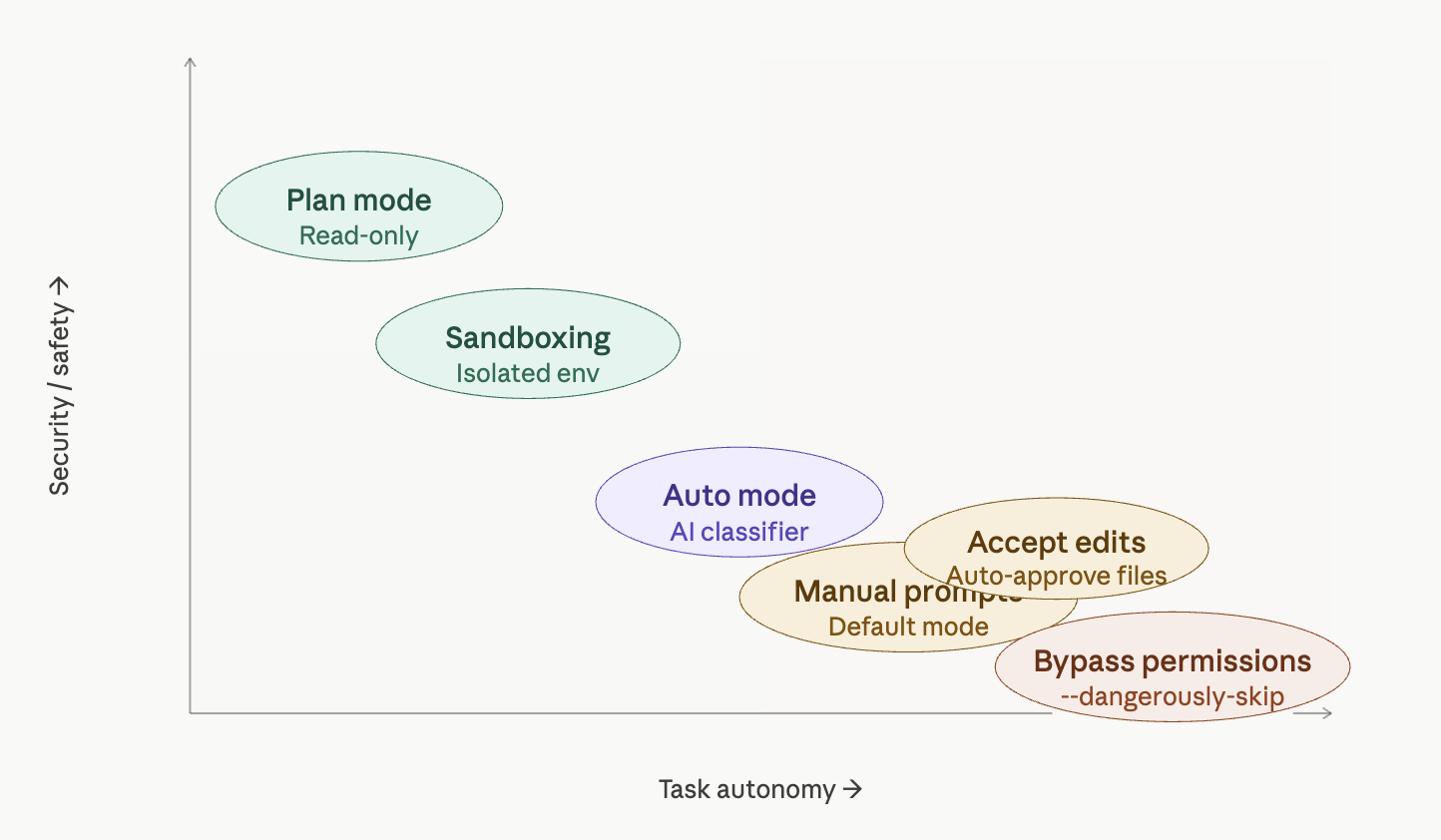
Plan mode is arguably the best default for starting any session. Activated with Shift+Tab, this is a read-only mode — Claude can analyze your codebase, propose solutions, and reason through complex tasks, but it cannot modify anything. No files changed, no commands run. It’s perfect for exploration, architectural planning, or getting a second opinion on a tricky problem before taking action.
Accept edits is a middle-ground mode where file modifications are auto-approved, but bash commands still trigger a prompt. If your trust concern is primarily around shell execution rather than code changes, this might be a reasonable balance — though the bash prompts will still accumulate.
Auto mode is the most interesting new addition, specifically designed to address prompt fatigue. Instead of asking you for every action, an AI classifier reviews each operation before execution. It’s built to detect scope escalation, reject unwarranted changes, and resist prompt injection attacks. When something genuinely looks dangerous, it falls back to manual approval. This isn’t enabled by default — you need to turn it on via --permission-mode in the CLI. For people who are currently just clicking through prompts mindlessly, this is a meaningful upgrade in actual security.
Bypass permissions (--dangerously-skip-permissions) does exactly what the name implies: it skips everything. Every file write, every shell command, every network request and MCP call executes immediately with zero human review. This flag is named “dangerously” for a reason. If your Claude Code session is compromised while running in this mode, an attacker has unrestricted access to your machine. We’re talking potential supply chain attacks, token exfiltration, and worse. This mode might make sense in a tightly controlled, isolated CI environment — but running it on your personal laptop with work credentials is a serious risk.
Sandboxing: the professional option
Sandboxing is a different category entirely. Rather than adjusting how Claude Code asks for permission, sandboxing changes the environment Claude Code runs in — isolating it from your actual operating system.
Within a sandbox, Claude Code has limited filesystem access and goes through a network proxy that can explicitly allow or block specific URLs. On macOS this uses seatbelt, on Linux it uses bubblewrap, and Docker is also an option.
There are two sandbox sub-modes:
- Sandbox auto-allow: Commands run inside the sandbox without prompting, but attempts to reach non-allowed network destinations fall back to the normal permission flow.
- Sandbox prompt-all: The most restrictive option. Same filesystem and network restrictions apply, but every sandboxed command still requires manual approval. Maximum visibility, maximum control — ideal for working in unfamiliar codebases.
The important caveat: the sandbox boundary doesn’t cover everything. MCP servers and external API endpoints that Claude Code connects to sit outside the sandbox boundary and may need their own permissions and trust considerations.
How to actually choose
The matrix above shows the tradeoff clearly: security and autonomy pull in opposite directions, and no single mode is right for every context. Here’s a practical framework:
If you’re exploring or planning, start with plan mode. Don’t let Claude touch anything until you’ve reviewed its proposal.
If you’re suffering from prompt fatigue — meaning you’re currently clicking through prompts without reading them — switch to auto mode. An AI classifier that never gets tired is genuinely safer than a human who stopped paying attention twenty prompts ago.
If you’re working in a professional or team environment, sandboxing is the right direction. Expect it to become standard practice as organizations mature in their AI tool usage.
If you’re thinking about bypass permissions on your personal machine with real credentials and sensitive tokens: please don’t. The theoretical efficiency gain is not worth the attack surface you’re opening up.
The worst possible setup is the one that feels safe but isn’t — and right now, that’s a lot of people running the default mode, approving everything, and assuming that clicking “yes” 20 times a day means they’re in control.

